
Group administrators and event managers are advised to report their impacts through the group or event admin panel. This article will provide guidance on:
- Errors with adding impact through impact workflow
- Group Admin Add Impact Workflow
- Event Manager Add Impact Workflow
Error Message When Adding Impact As a Group/Event Admin
While end users are encouraged to submit impacts through the Add Impact workflow, which can be accessed from their User Dashboard or from the group/event page, group admins and event managers may encounter an "Additional Review Requested" or "Server Error" message when following the same process. This most commonly occurs when the admin or event manager is listed as the verifier for the impact.
To maintain the integrity of the impact verification process, no user can submit an impact and also serve as the verifier for that same impact. In other words, a user cannot be assigned as the verifier of their own impact submission.
Because of this restriction, GivePulse provides different workflows for end users and administrators to record impacts. These workflows are designed to ensure integrity and consistency within the verification process.
Group Admin: Add Impact from Manage Admin Panel
Group admins (especially those listed as the default verifier or a selected verifier) must record their impacts through the Group Admin Panel > Add Impact.
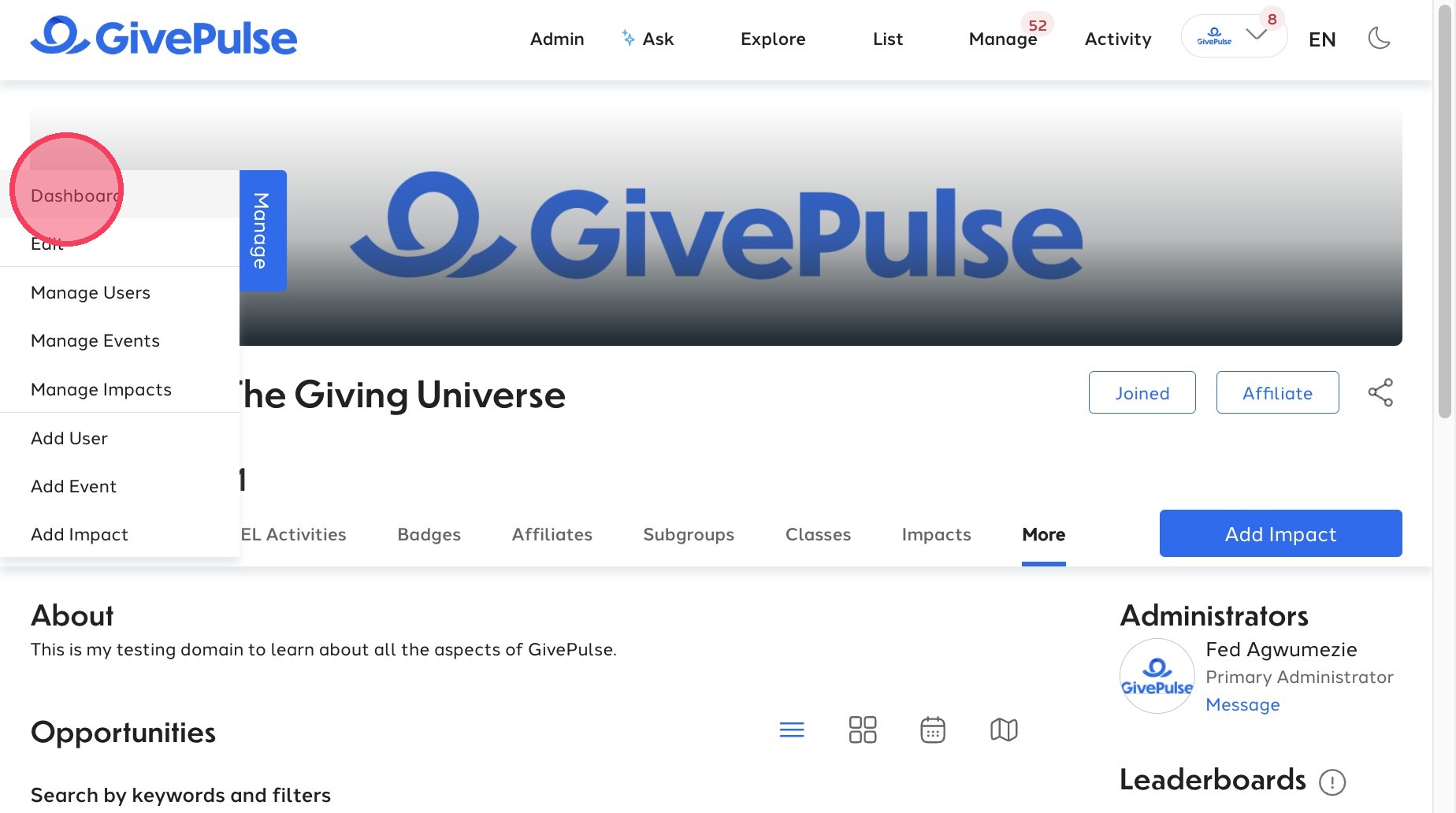
Starting from the group page,
- Select the blue Manage button to open up the Group Admin Panel.

- On the left-hand panel, navigate to Impacts > Add Impact.
- On the Add impact screen, make sure you are adding an impact under the "User" tab to add the impact for yourself.
- Fill in all the required fields and all additional fields as needed.
- The impact will automatically be set to verified but this option can be de-selected if needed.
- Finally, scroll down and click the blue Add Impact to submit your impact.
Event Manager Add Impact Workflow
Event Managers must record their impacts through the Group Admin Panel.
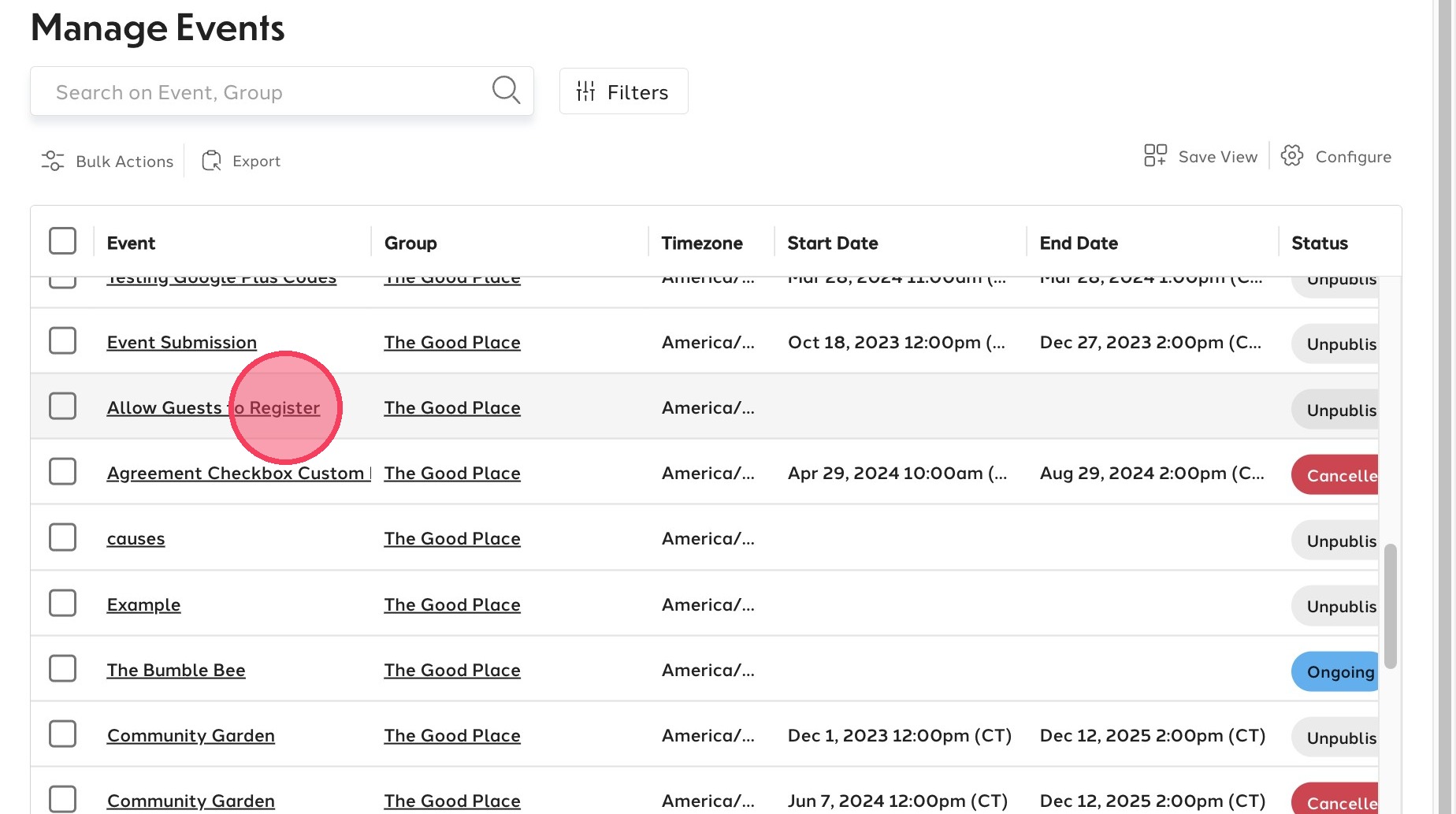
Starting from the Manage Event drop down,
- Select the event that you are looking to add an impact for.
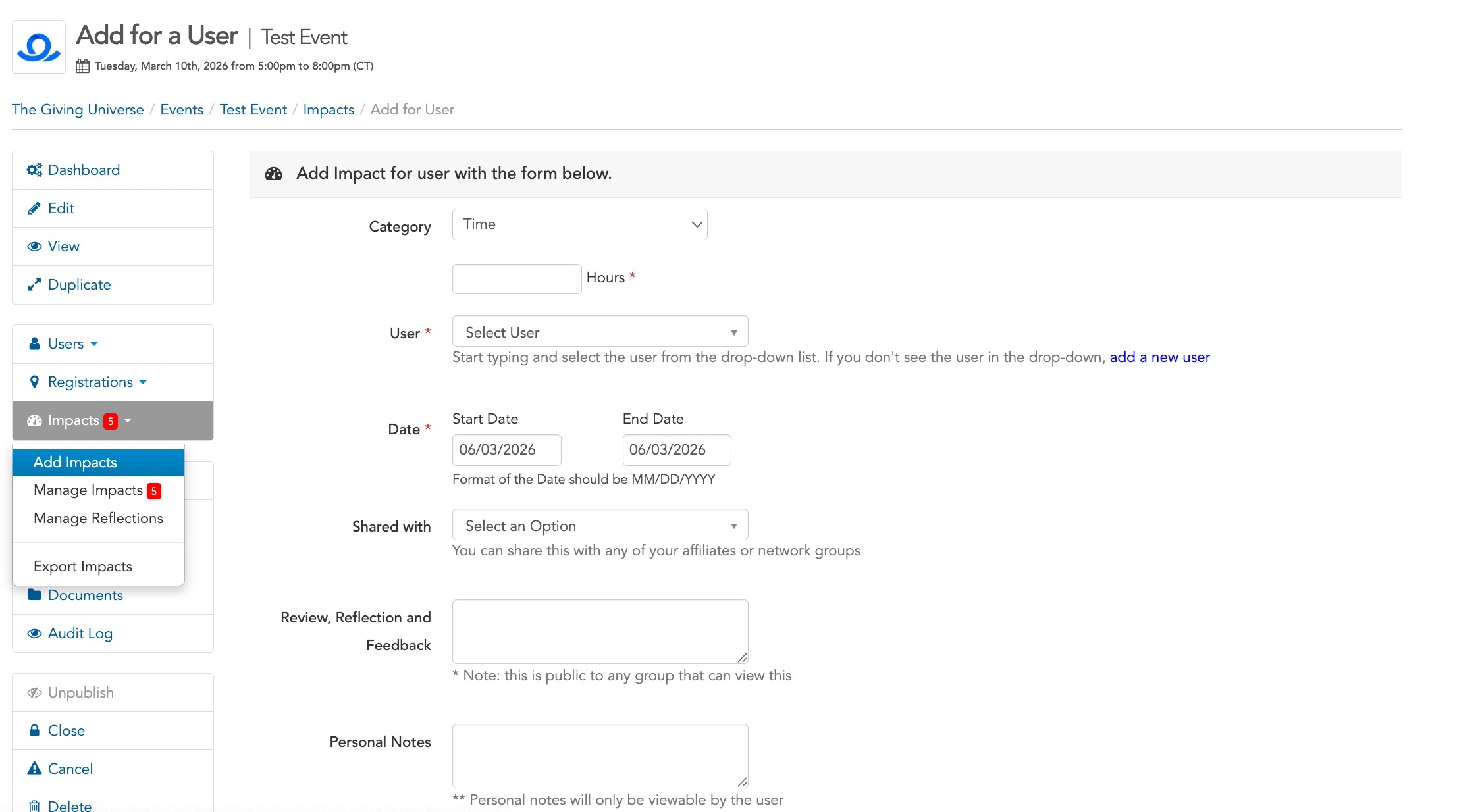
- On the left-hand panel, navigate to Impacts > Add Impact.
- Fill in all the required fields and all additional fields as needed.
- The impact will automatically be set to verified but this option can be de-selected if needed.
-
Finally, scroll down and click the blue Add Impact to submit your impact.
Pro-tip: No user can be set as the verifier to their own impact. So admins of an event or group must submit their impact through the Group Manage Admin Panel to avoid impact submission errors. This method also provides admins with an option to manually submit impacts on behalf of users and groups.
Add Impact Workflow for Group Admin and Event Manager
Learn how to navigate to record impacts as an group Admin or Event Manager.
How to Add an Impact as a Group Admin
1. First, navigate to the Group Admin Panel using the blue Manage Button. You can also select the "Add Impact" option from the this section.
2. Select 'Add Impact' from the 'Impacts' sidebar menu
How to Add an Impact as a Event Manager
3. From the Manage > Event drop down on the top right panel, select the event of choice that you would like to record your impact for.
4. Select 'Add Impacts' from the 'Impacts' sidebar menu

5. Step
Comments
0 comments
Article is closed for comments.