
Admins can now set an event's privacy level to Private - Tag Specific. This option restricts event visibility to users who have one or more of the tags assigned to the event. When Private - Tag Specific is enabled, only users whose accounts include at least one of the selected tags will be able to view and register for the event.
This feature is ideal for managing prerequisites, training requirements, cohorts, and other restricted-access opportunities.
Note: This feature is available exclusively with paid GivePulse subscriptions.
This article will review:
How to Get Started with Tagging Users & Events
When setting an event as Private - Tag Specific, you are allowing the event to only be visible to users who also have the same tag. Before enabling this feature, ensure the appropriate tag has been created and assigned to eligible users.
To begin using this feature, you must first (1) have tags created and configured, and (2) tag users and events accordingly.
NOTE: The user will need to be a member of the group hosting the event and have the tag-specific label in order to view and register for the event.
How to Set an event to Private- Tag Specific
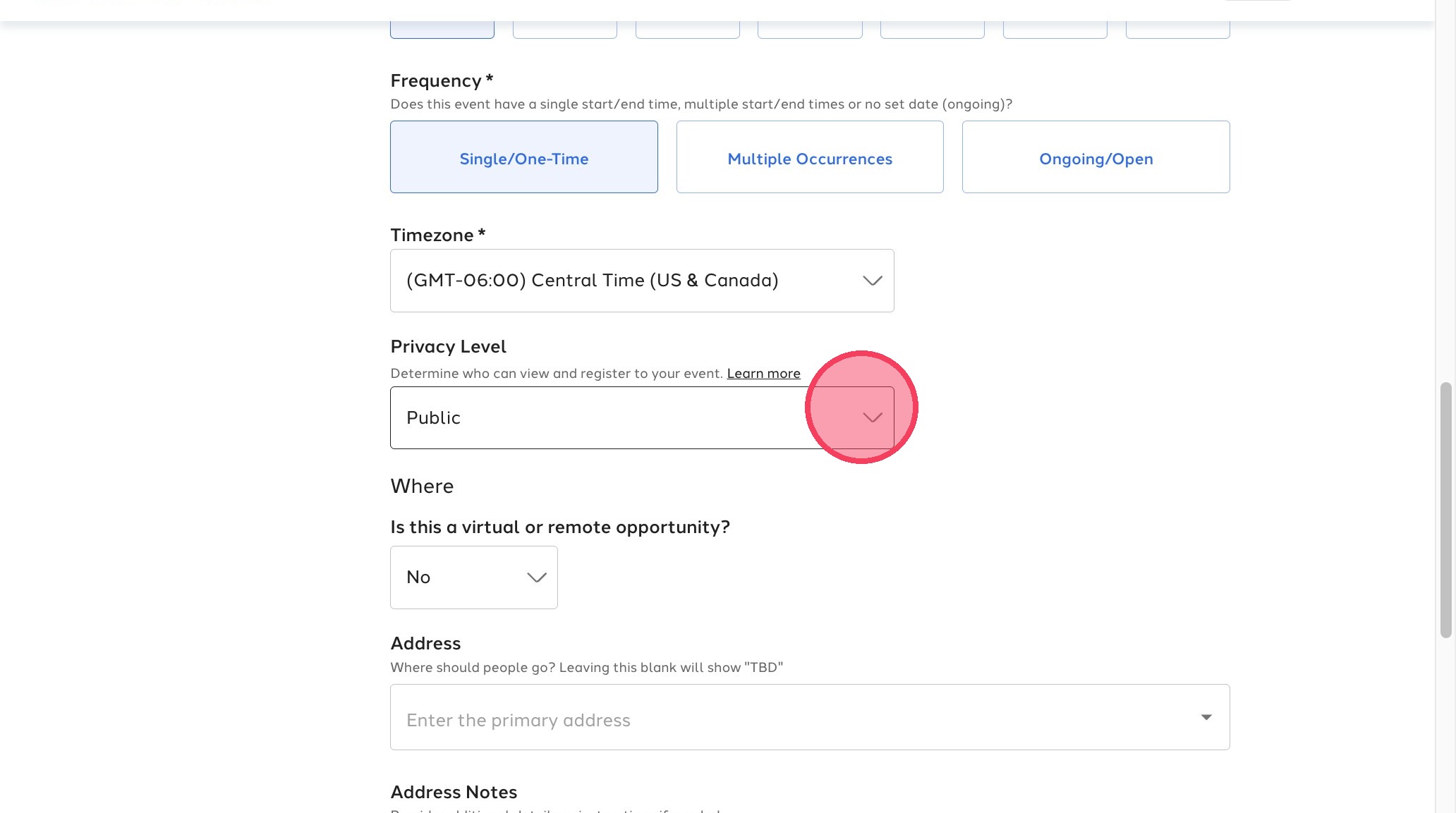
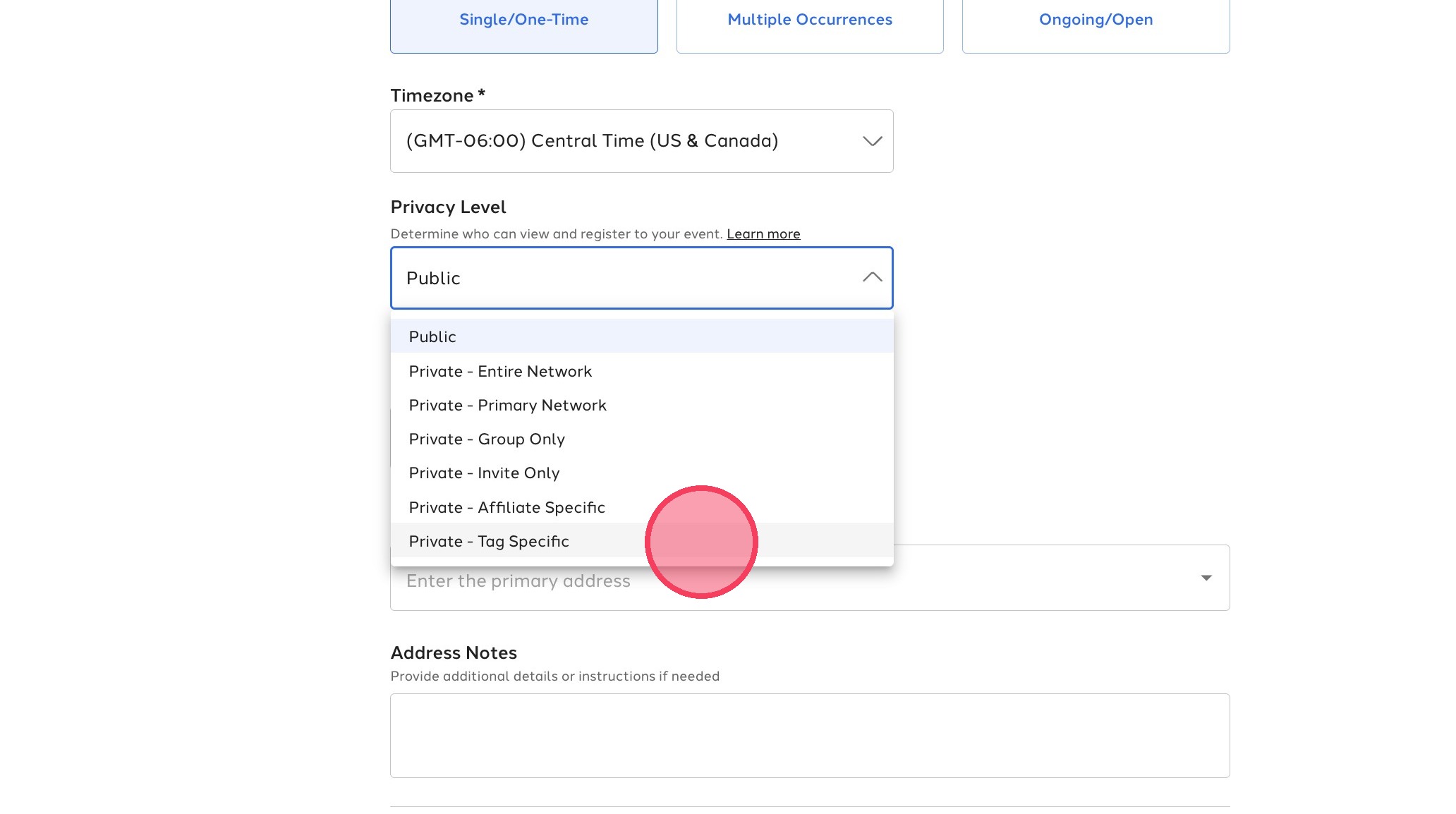
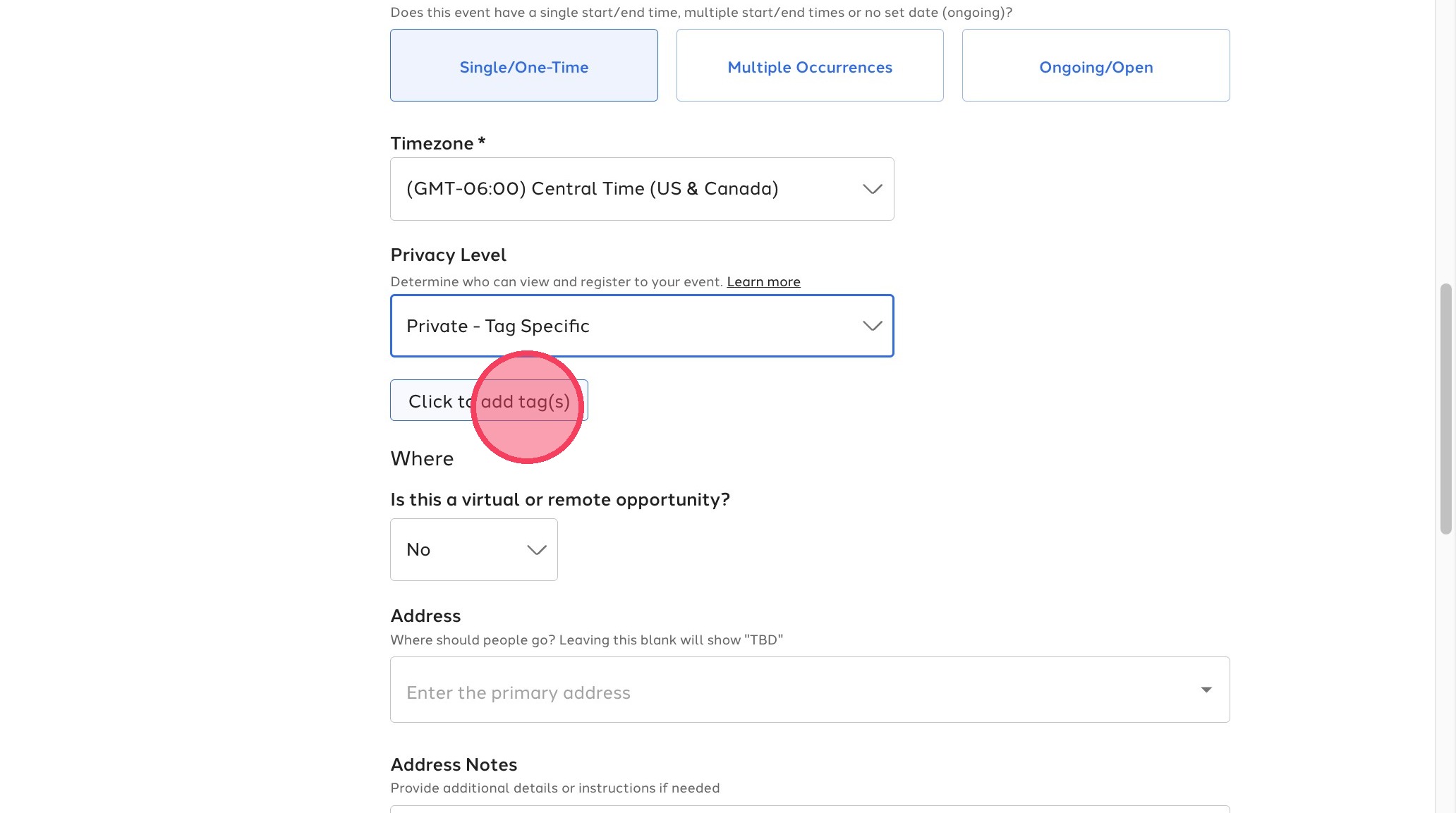
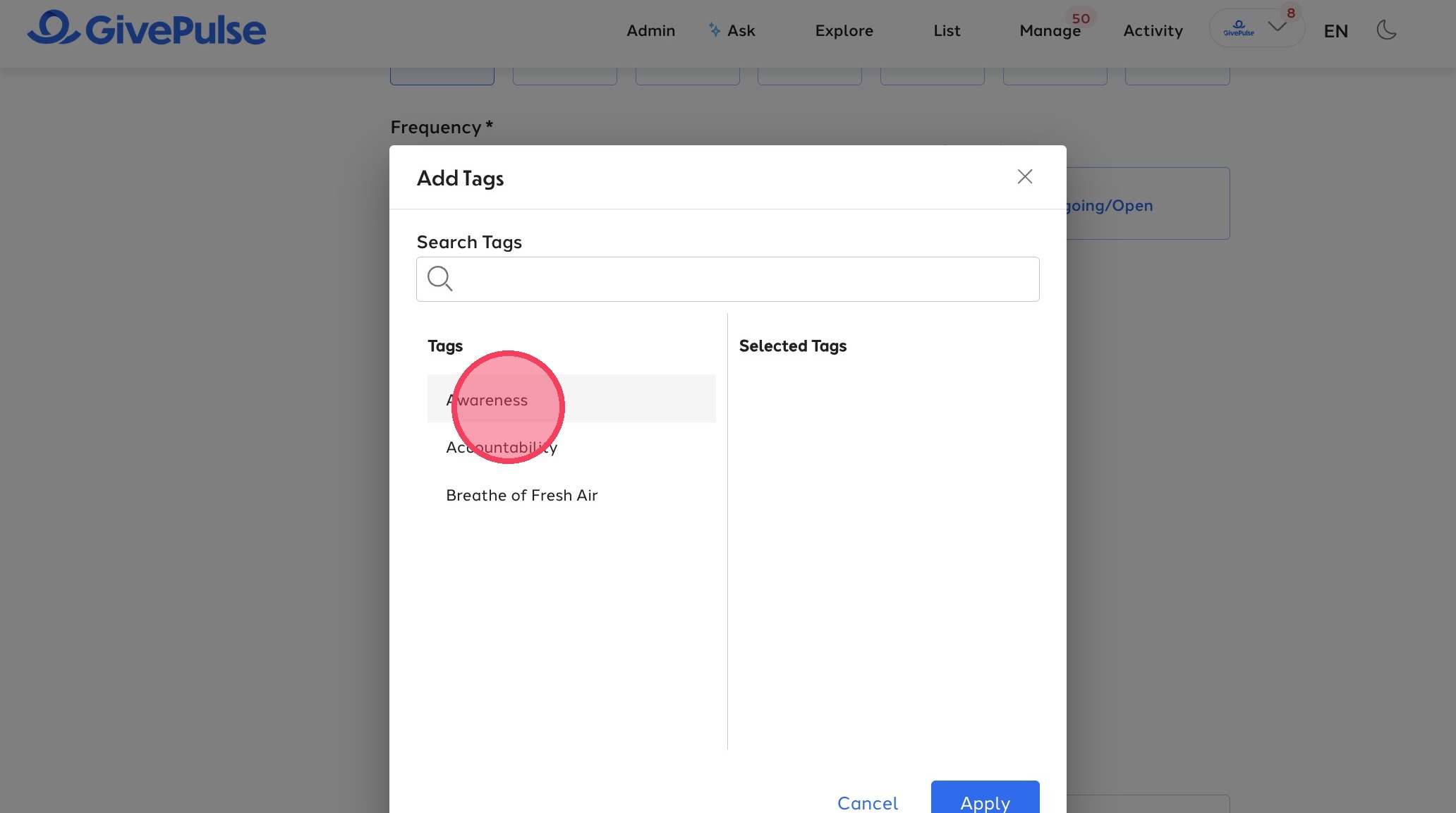
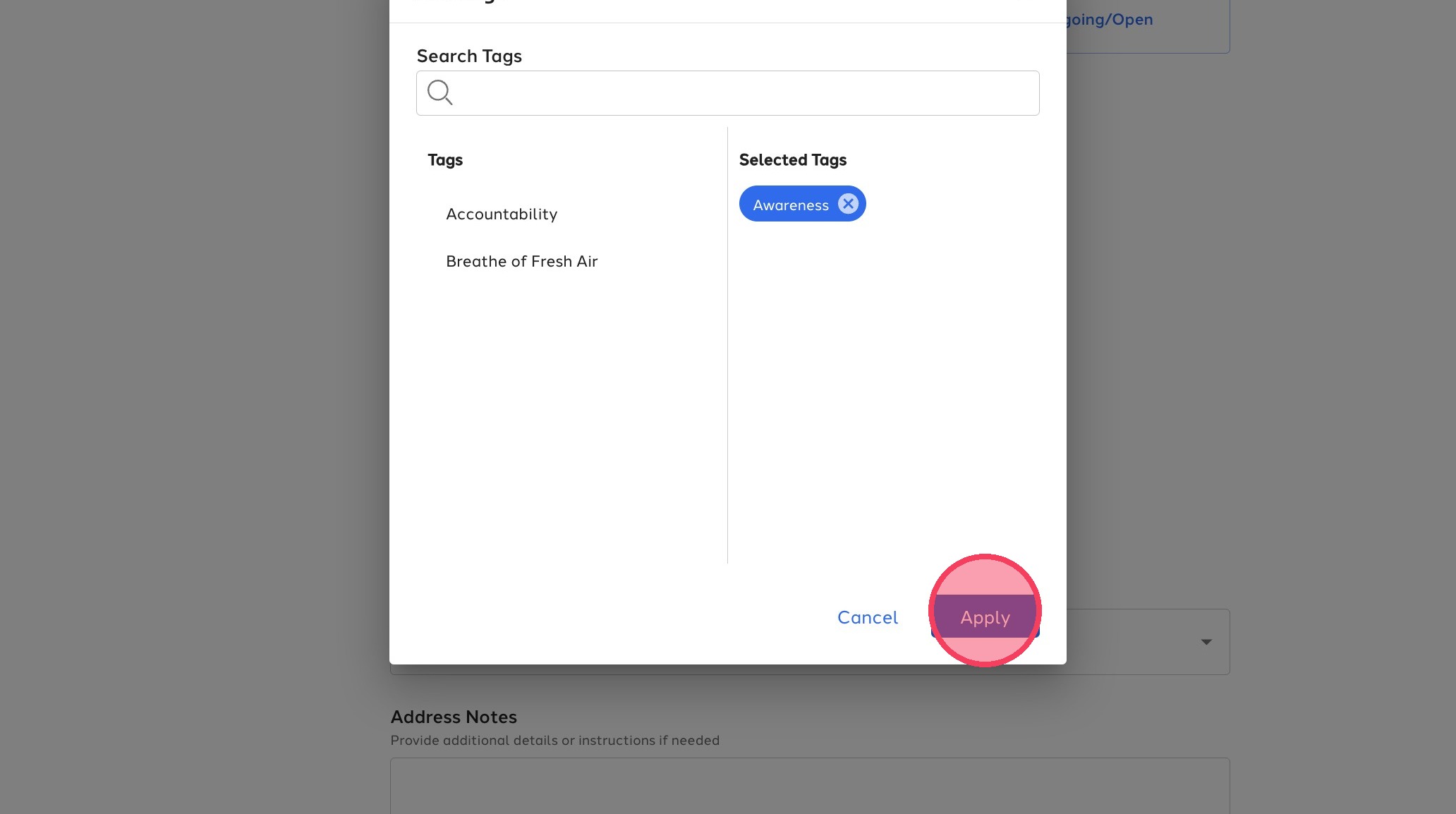
To configure tag-based access, navigate to the event configurations screen, Basic Info > Privacy and select Private > Tag Specific, then choose the desired tag(s).
Users with at least one of the selected tags will be able to view and register for the event, while users without those tags will not see the event.
For additional information on how to add set the privacy to tag specific follow the below steps provided:
1. Navigate to Edit Event > Basic Info.
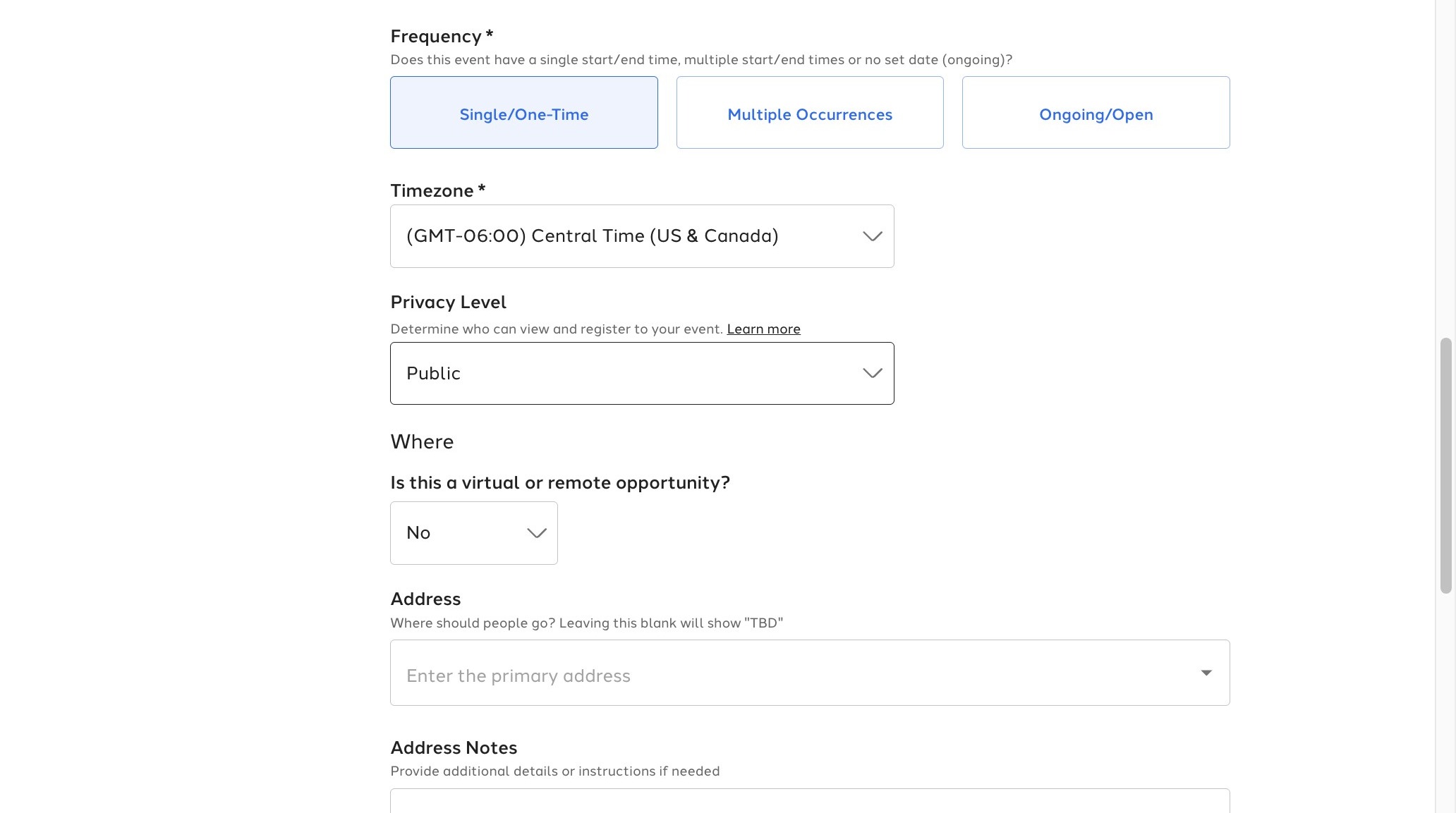
2. Set Privacy Level to "Private - Tag Specific"
3. Select the specific tag listed in the open dialogue box.
Comments
0 comments
Article is closed for comments.